Introduction
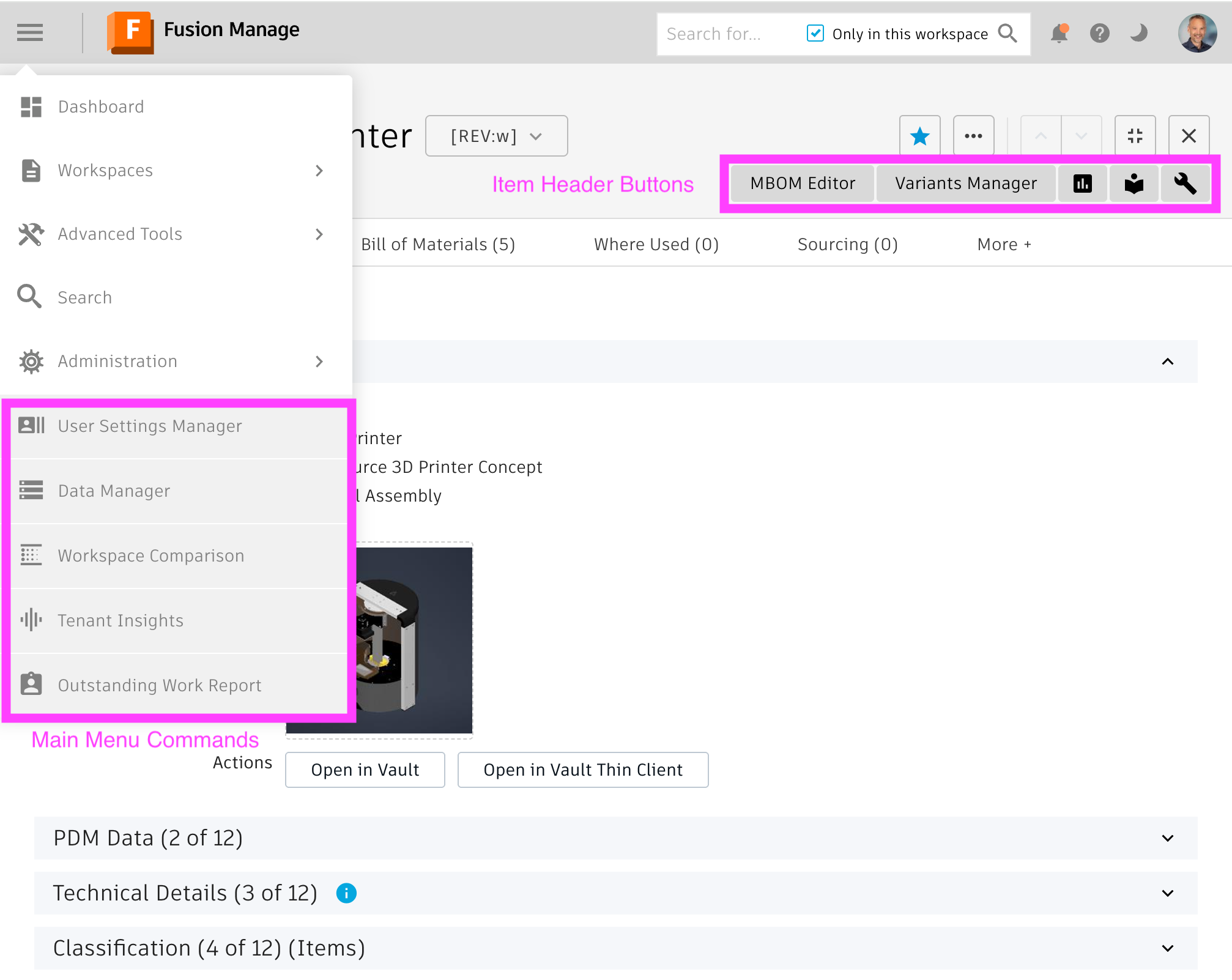
Users of Microsoft Edge and Google Chrome can use a browser extension which integrates most PLM UX Extensions with the standard Fusion Manage user interface. The extension will add a defined list of commands to the main menu for Administrators and add a dynamic list of buttons in the header of given records. This mechansim requires installation of the browser extension on each client, but can be configured on the PLM UX Extensions server to only provide the commands / buttons of interest. The given controls will use a slightly different styling to highlight these features being custom controls.
Downloading Chrome Extension Installation Files
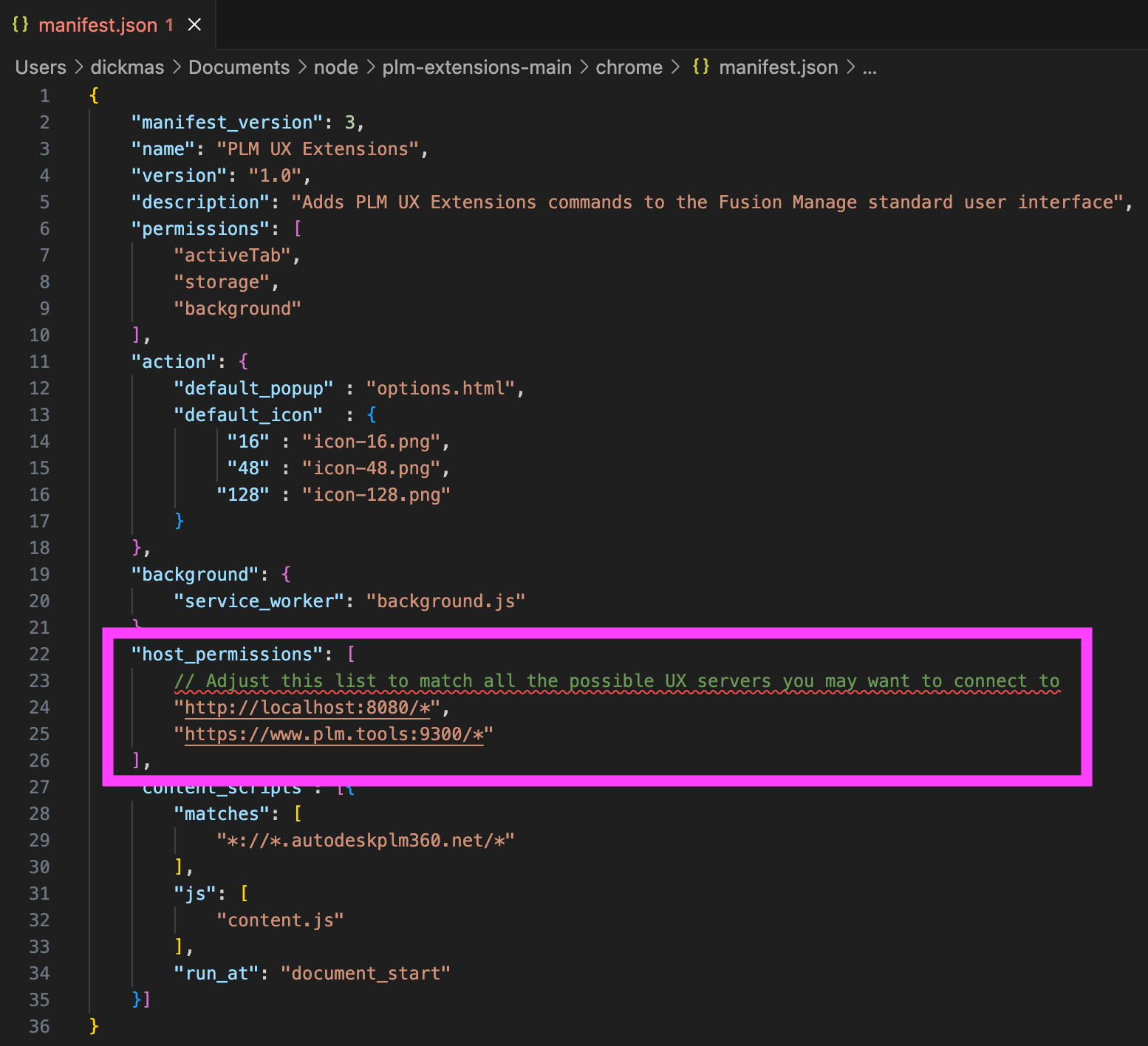
The installation files of this Chrome Extension extension can be found in folder chrome contained in the PLM UX Extensions server folder. However, it is not recommended to install the extension using this folder. Instead, you should download the installer files using the given button on the server landing page first. This is because the installation files must be kept on the client after the installation to make the extension work. Also, this download wil update the installer files to ensure that the extension has the required permissions to work: Before downloading the files, the server will update the installation files (i.e. manifest.json) granting access permssion for this Chrome Extension. As the additional commands and buttons are dynamically driven by the PLM UX Extensions server, your PLM UX Extensions server must be listed as permitted host as shown below. This given change will be performed automatically when downloading the installation files from this server's landing page.
Once downloaded, you can use the files also for the installation of the Chrome Extension on other computers.
If your PLM UX server's address changes, ensure that the new URL of your PLM UX Extensions server is listed in here. Note that while you can list multiple PLM UX Extensions servers in here, only one can be active. The active server is selected in the options dialog of the Chrome Extension as described in a later step.
Chrome Extension Installation
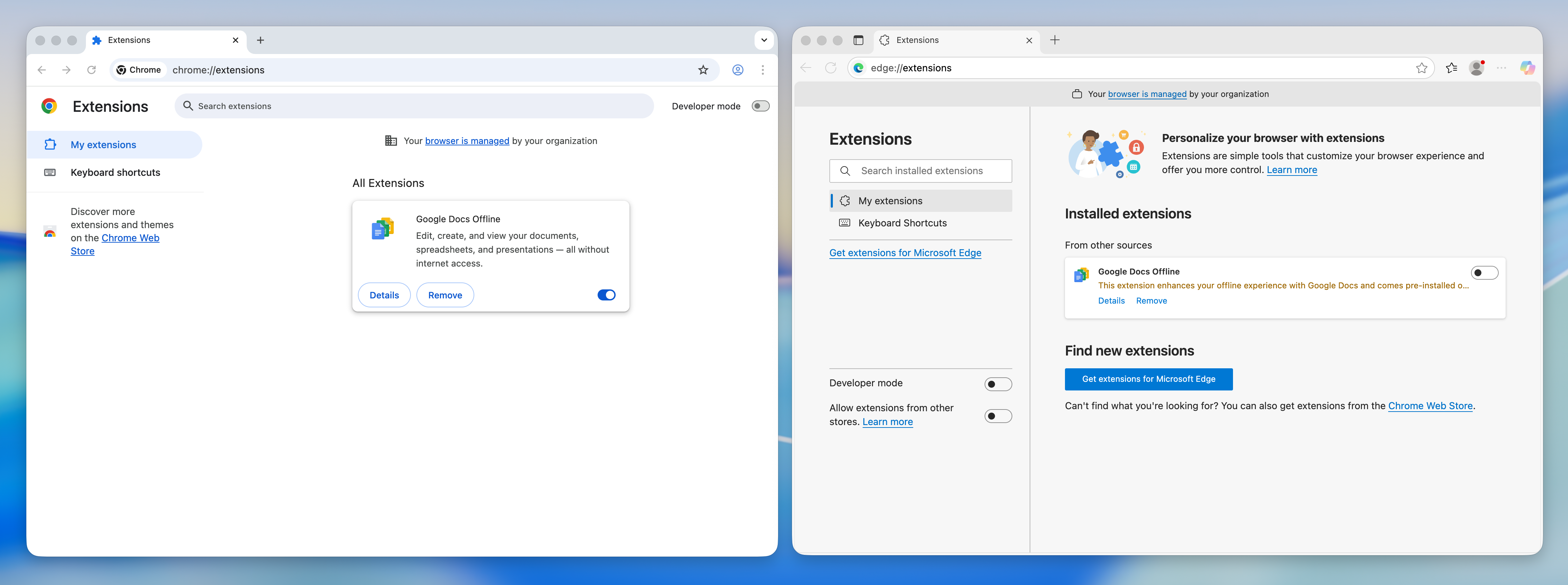
To install this package, open the Extensions control of your browser by opening the address chrome://extensions either in Google Chrome or Microsoft Edge:
Next, enable the Developer Mode by clicking the given control of your browser:
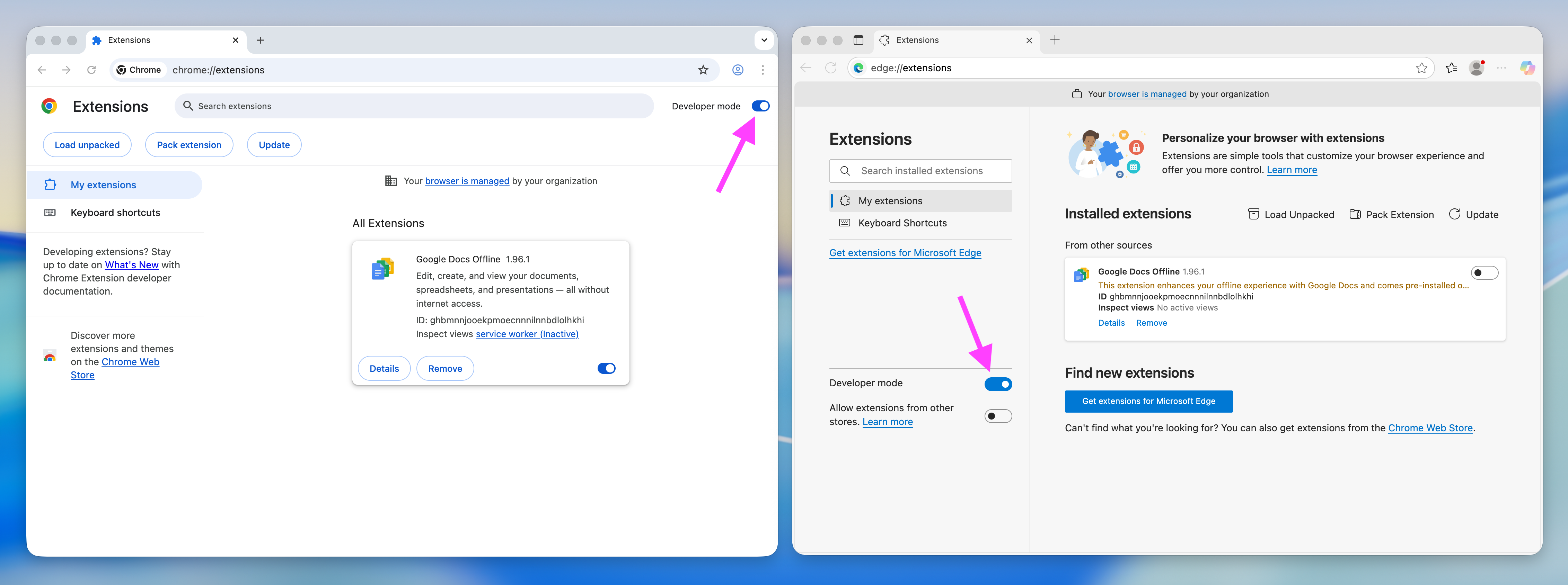
This will enable the features to install an extension from local disk and provide the new button Load Unpacked:
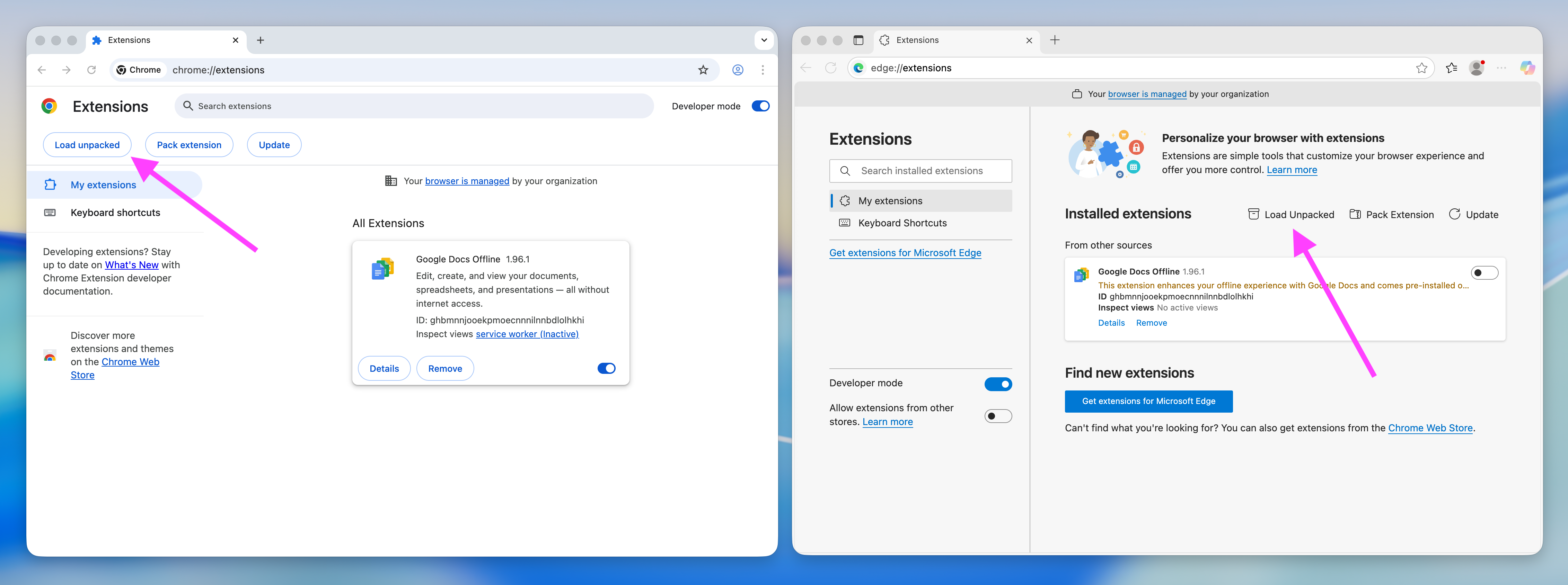
Click this button and browse for the folder /chrome of this PLM UX Extensions package and click Select:
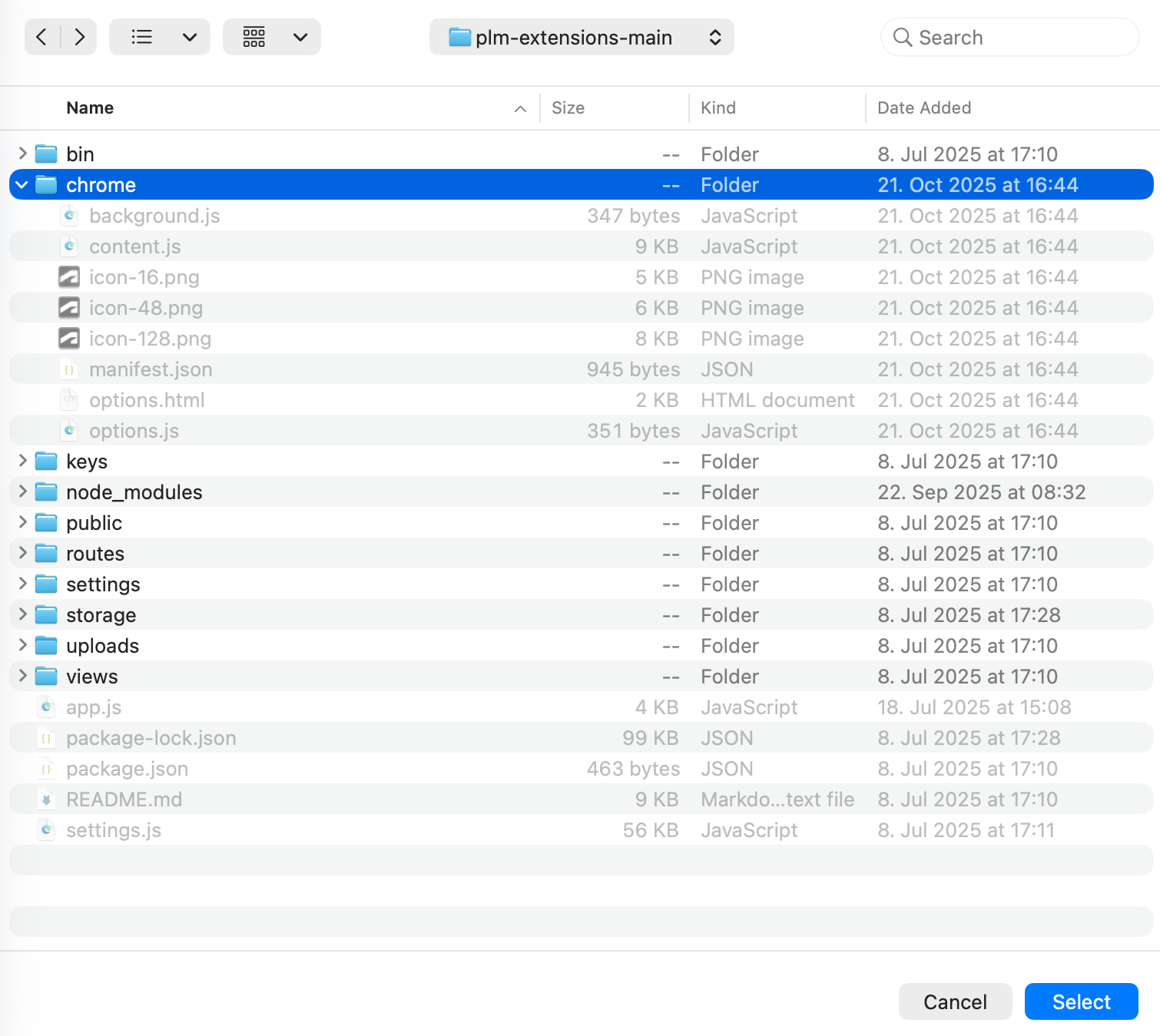
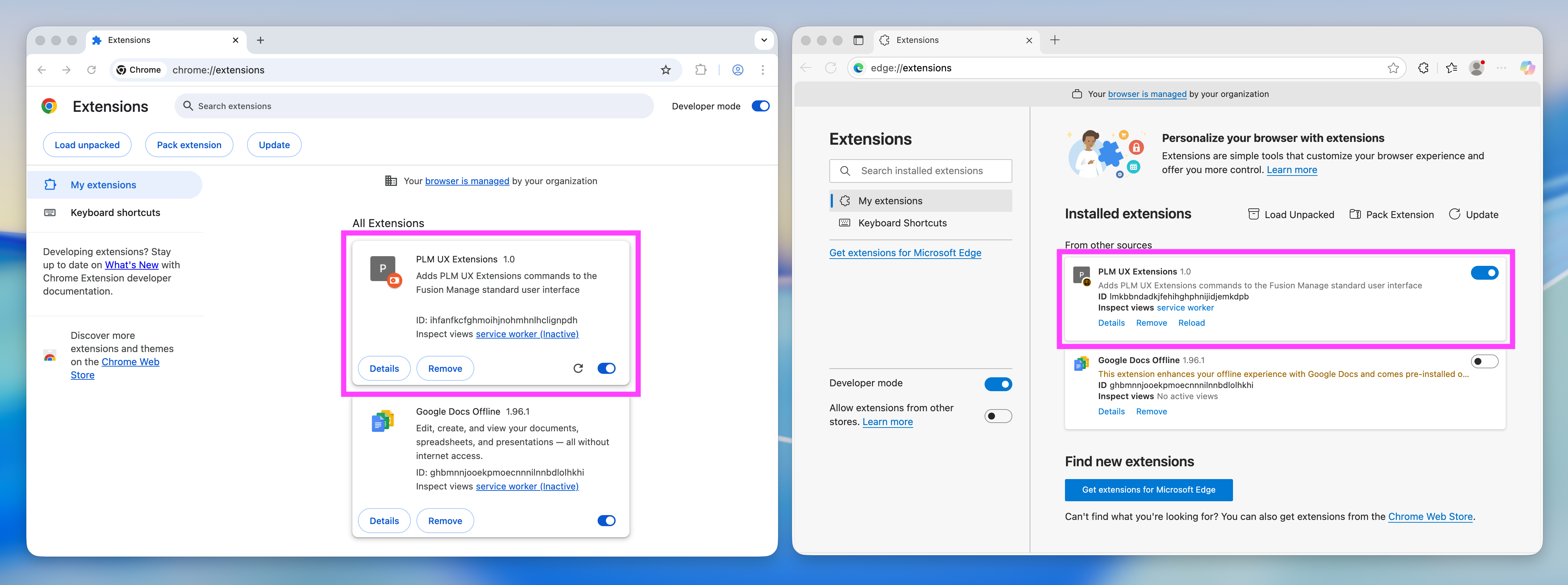
The addon now is ready and will be launched anytime you open a site at autodeskplm360.net
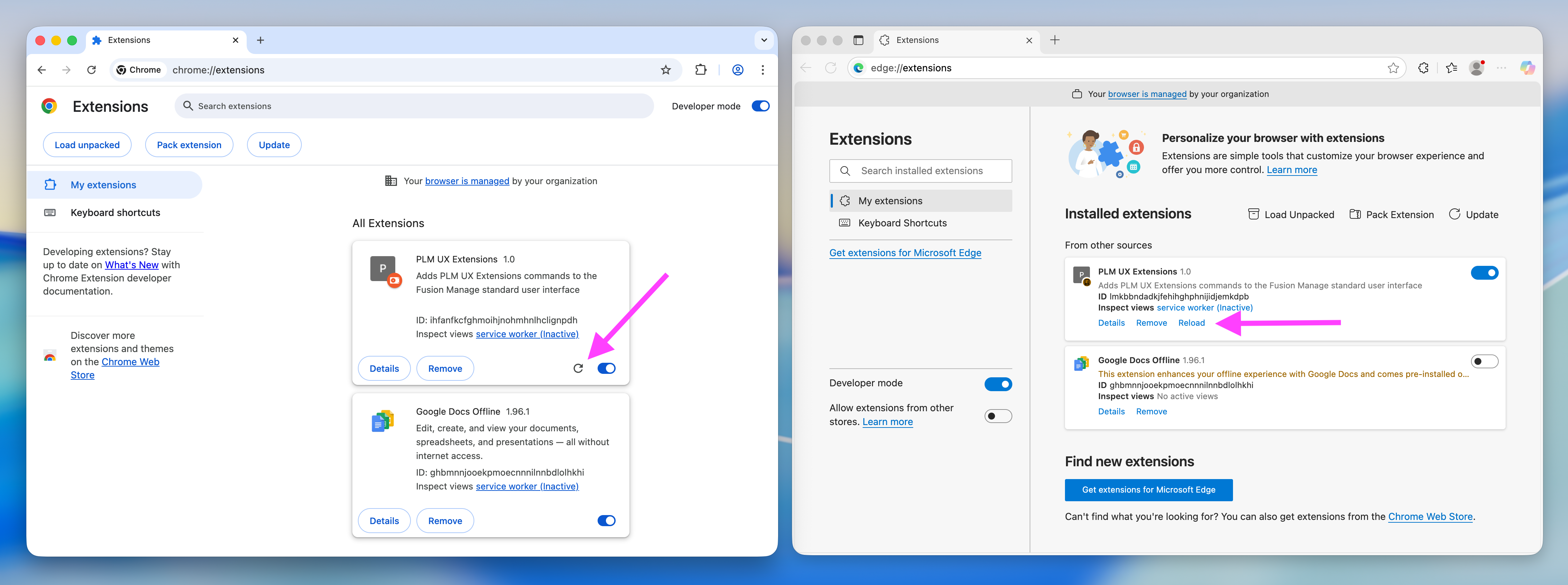
Note that all changes to the files in folder /chrome require a relaod of the given extension. For example, if you change the default PLM UX Extensions server URL in file content.js, you have to return to this list of extensions and enforce a reload using the given controls:
Setting PLM UX Extension Server URL
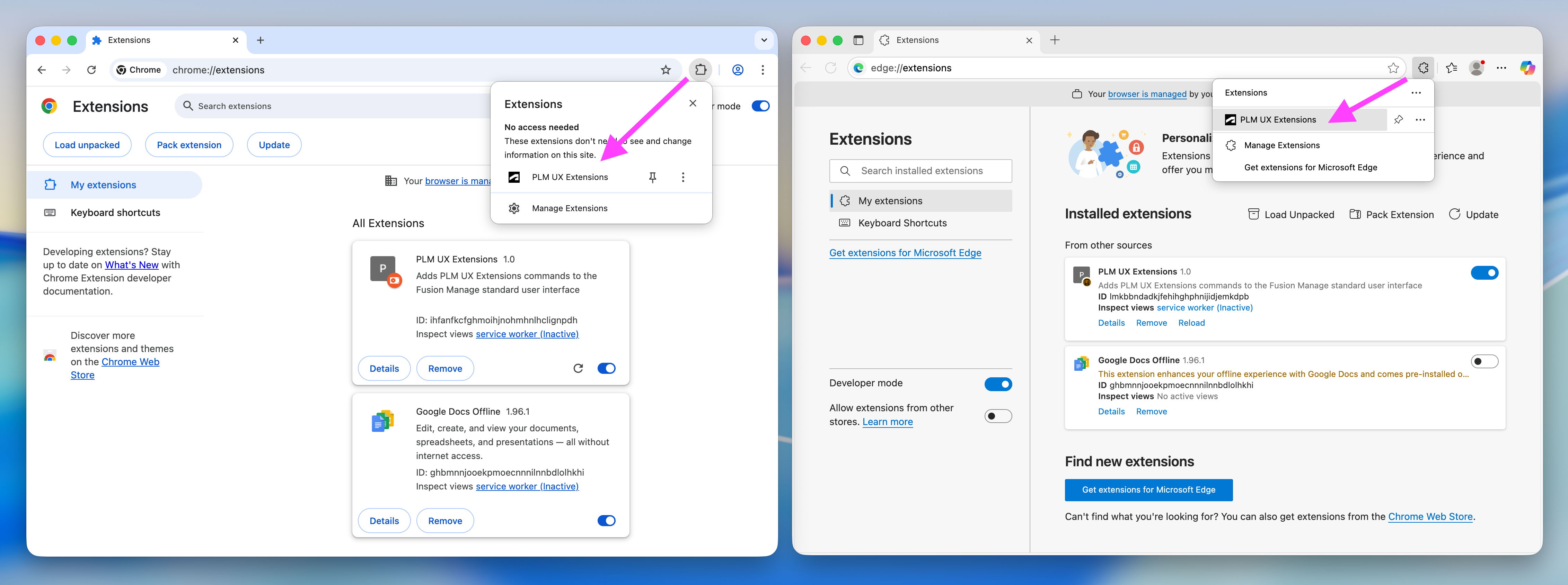
Once the Chrome Extension is installed and active on your computer, you can open the extension's options by clicking the browser's Extensions button and then clicking the PLM UX Extensions in the list of browser Extensions:
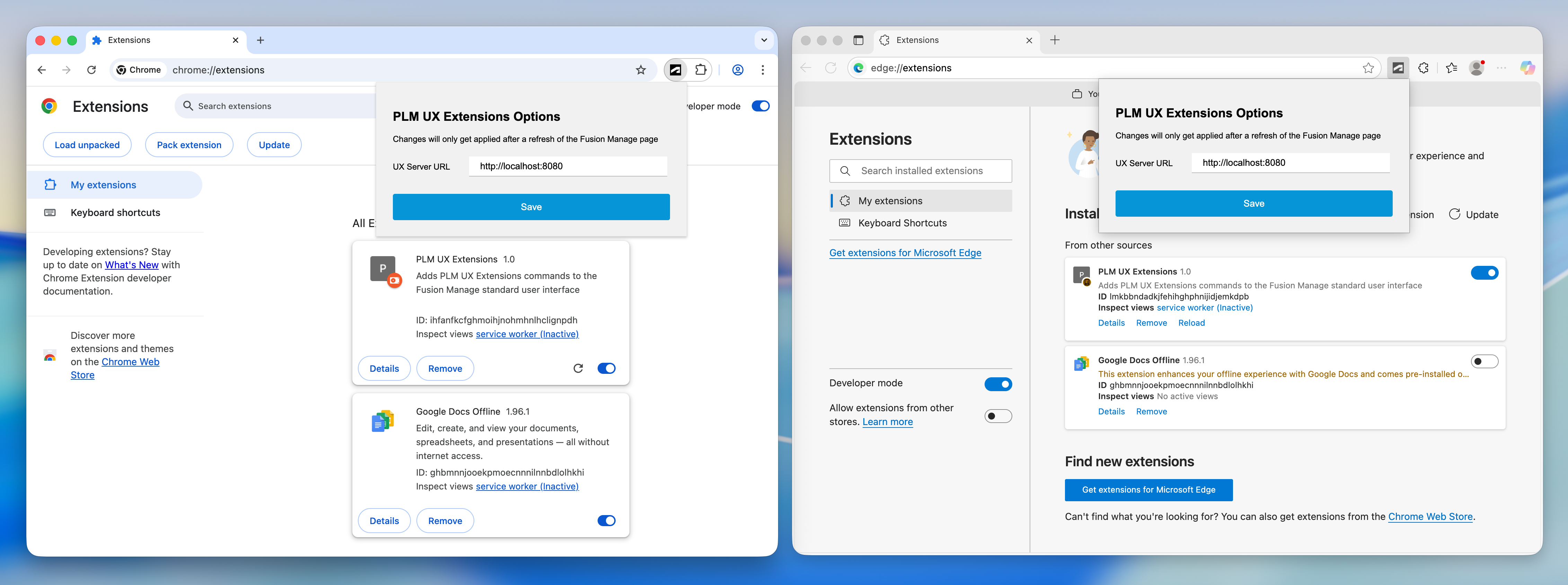
The options dialog now enables you to enter the PLM UX Extensions server URL. It is set to http://localhost:8080 per default, so you only have to change this when not running the server locally. Keep in mind that the URL entered in here also must be listed in the host_permissions of file /chrome/manifest.json as described in the initial step.
Content Configuration
A new section in file settings.js enables Adminstrators to define the main menu entries and header buttons to be added by the browser extension. It contains the following properties:
- commands defines the entries being added to the main menu
- buttons defines the list of buttons being added to the headers of PLM items
- workspaces is used to define the required workspace IDs of the PLM tenant
However, the clients only must refresh the Fusion Manage pages for the changes to take effect, the browser extension does not require an update.

Main Menu Entries
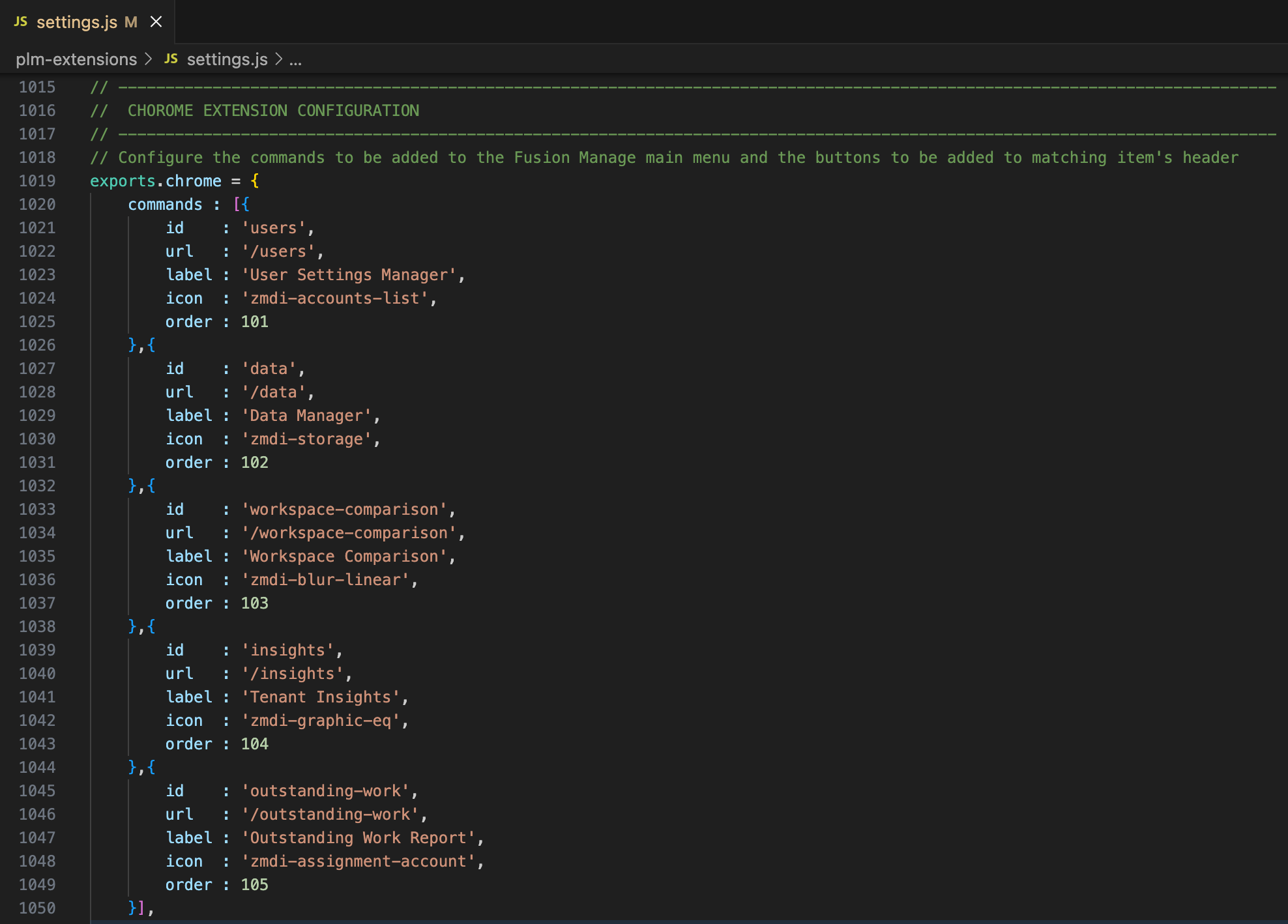
The commands property defines the list of commamds being added to the main menu of Fusion Manage. These commands will only be shown if the user has admin permission in the tenant as this list contains the Administration Utilities of the PLM UX Extensions only. Each command is defined by the following settings:
| id | Unique id for the command (choose any) |
| url | Sets the URL to be opened when users click the command |
| label | Defines the label of the command shown in the menu |
| icon | Sets the icon to be shown along with the command (see reference at https://fonts.thembay.com/material-design-iconic) |
| order | Controls the sequence of the new commands in the main menu |
Item Header Buttons
The buttons property defines the buttons being added to the headers of items of defined workspaces in Fusion Manage. Each button is defined by the following properties:
| id | Unique id for the button (choose any) |
| url | Sets the URL to be opened when users click the button |
| label | Defines the label of the button (if no icon is defined) as well as its tooltip |
| icon (optional) | Sets the icon to be shown instead of the button's label (see reference at https://fonts.thembay.com/material-design-iconic) |
| workspaces | Visibility of the button is controlled by this settings. Each value listed in here will be mapped to the matching workspace ID using the property workspaces that follows the list of buttons. |

Disable Custom Styling
If the new controls should match the default controls styling, set the property customStyle to false and restart your PLM UX Extensions server:
